
Managing files on a computer should be simple. But sometimes, the built-in tools just don’t feel right. That’s why many people search for better ways to handle their files. CX File Explorer is one of those apps. It’s a popular file manager on Android phones. People like how clean it looks and how easy it is to use. Now, many users want to run CX File Explorer on their PCs too. Even though it’s made for Android, you can still use it on a computer with a few simple steps.
Let’s look at what makes CX File Explorer special. We’ll also go through how to install it on a PC and why it’s better than the regular Windows File Explorer in some ways.
Why People Like CX File Explorer
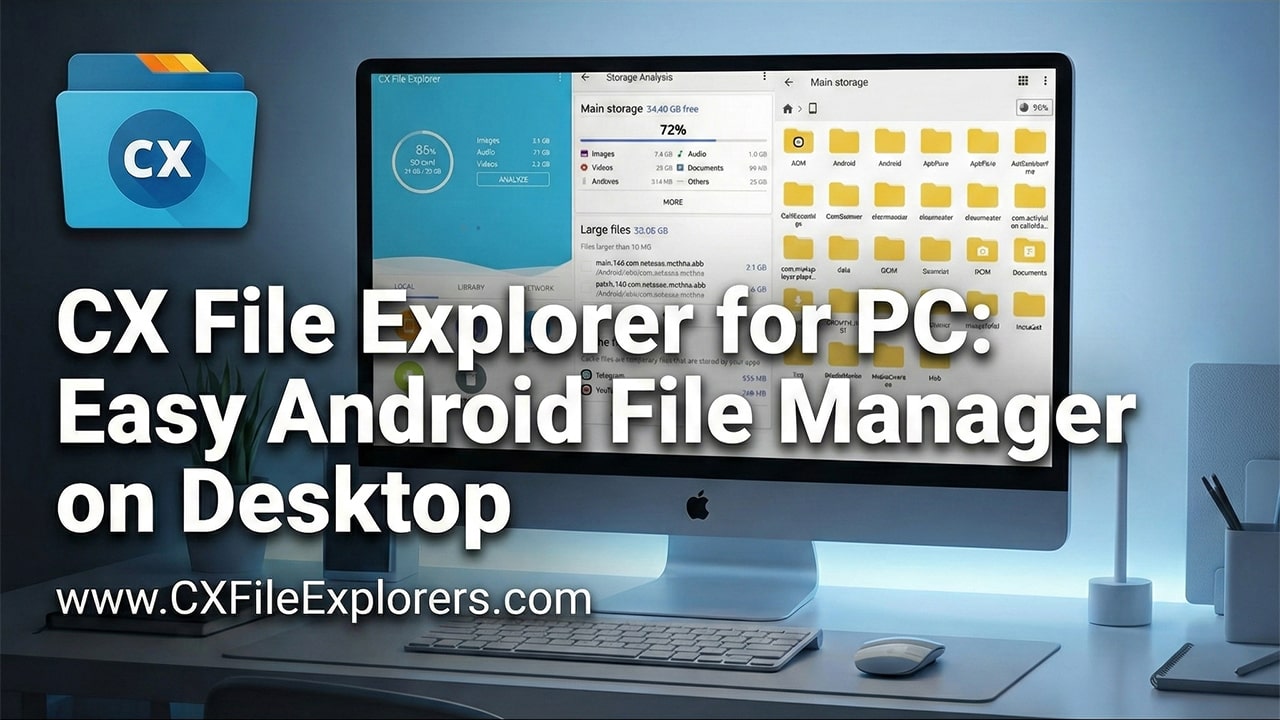
It’s true that people don’t like using confusing apps. CX File Explorer is not like that. It’s clean and simple. You can see all your files clearly. It also shows you how your storage is used. There’s a round chart that shows how much space is taken by photos, videos, and other stuff. This helps you clean up your files faster.
Also, the app works with cloud storage. That means you can connect it to Google Drive, Dropbox, OneDrive, and more. You don’t have to open a browser. You can move files to and from the cloud right inside the app.
Another good thing is network access. If you have a shared folder or a remote storage device, CX File Explorer can open it. It supports FTP, SFTP, SMB, and WebDAV. This makes it easy for people who work across different computers or servers.
It also lets you manage your apps. You can back up, uninstall, and even open APK files. If you’re using an Android emulator, this becomes really helpful.
What You Need to Know Before Installing on PC
CX File Explorer doesn’t have a Windows version. That means you can’t just download an .exe file and run it. Instead, you need something called an Android emulator. This is a tool that lets you run Android apps on your PC.
You don’t need to worry. It’s not hard. It only takes a few steps. Many people use emulators like BlueStacks, NoxPlayer, or LDPlayer. These are free and easy to install.
How to Install CX File Explorer For PC
To use CX File Explorer for PC, follow these steps:
-
Pick an Emulator – Choose one like BlueStacks or LDPlayer. These are good for beginners and work well.
-
Download and Install It – Open the emulator’s website and download the setup file. Then follow the instructions.
-
Enable Virtualization – This is a setting in your computer’s BIOS. It makes emulators run better. You might not need to change anything, but if things feel slow, check this.
-
Open the Emulator – Once it’s installed, open the emulator.
-
Log in to Google Play – Just like on a phone, you’ll need a Google account to download apps.
-
Search for CX File Explorer – Type the name in the search bar. Click install.
-
Open the App – You’ll now see the app icon inside the emulator. Click to open it.
That’s it. Now you have CX File Explorer running on your PC.
Key Features That Make a Difference
CX File Explorer has a lot of tools packed into it. Some of them are really useful, especially on a PC:
-
Visual Storage Info – You see a round chart showing how your space is used. It’s much faster than checking properties in Windows.
-
Cloud Access – Add your Google Drive or Dropbox and move files without opening extra apps.
-
Network File Access – Use your local Wi-Fi to see files on other computers or storage drives.
-
App Control – Manage Android apps on the emulator. This is great if you test apps or use APK files.
These tools are easy to use. You don’t need to be an expert. The app explains everything in a simple way.
CX File Explorer vs. Windows File Explorer
People often ask: Why use CX File Explorer for PC when Windows already has one?
Here’s the thing. Windows File Explorer is good, but it’s plain. You don’t get visual charts or easy cloud access. Also, setting up a network share in Windows can be slow. You have to map drives and use long setup windows.
CX File Explorer makes this easy. Click “Network,” and it finds your shared folders. No extra windows. No guessing.
The look and feel of the app are also smoother. You don’t have to open many windows. Everything is in one place. This helps you stay focused and not waste time clicking around.
If you use Android a lot, having the same file app on your PC makes things simpler. You won’t need to learn different tools for different devices.
Transfer Files Across Devices
One smart thing about CX File Explorer is how it handles file transfers. On your phone, you can turn it into a mini server. Then you can connect from a computer and move files.
But when using it on a PC with an emulator, the idea flips. Now the PC can reach phones or cloud storage easily. You can grab a photo from your phone, change it on the computer, and put it back on Google Drive. All this happens without extra apps.
This is great for people who work across many devices. Everything stays in sync, and you don’t have to use USB cables or email files to yourself.
Things to Remember
Even though CX File Explorer is easy to use, there are a few things you should know:
-
It uses some memory. If your computer has less than 4GB of RAM, it might feel slow.
-
The emulator needs to run well. Make sure other programs are closed when using it.
-
You can’t install it like normal Windows software. It always needs the emulator.
But once it’s running, it works great. Most users don’t go back to using plain file managers after trying it.
Final Thoughts
CX File Explorer for PC is not just a normal file app. It’s more like a full toolkit. You can manage files, use cloud storage, connect to other devices, and control Android apps. The clean layout and easy features make it great for beginners and power users.
Even though it takes one extra step to install, it’s worth it. You get better control over your files. You also get the same file manager on your phone and computer. That makes work faster and simpler.
If you want a clear, visual, and smooth way to manage your files, try CX File Explorer on your PC. It’s one of the best choices you can make for better file handling.